
Windows 11 backups broken by bad Windows Update
A bug in the latest Windows 11 software update has been causing problems that break some backups. If it stopped your backups, you can uninstall the update to get your backups running again properly.Blog post description.
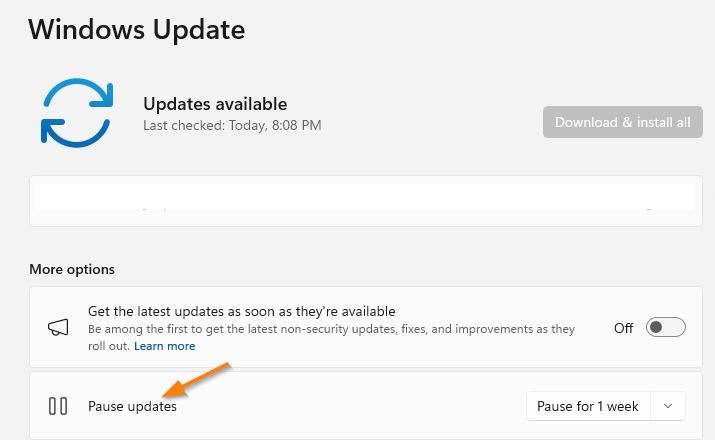
A bug in the latest Windows 11 software update (KB5083769) has been causing problems that break some backups. If it stopped your backups, you can uninstall the update to get your backups running again properly.
The Windows Update bug does not affect Windows servers or Windows 10 computers. Only indows 11 machines running some backup applications are impacted.
Computer backups should be checked regularly, but for many of us it is hit or miss. Take the time now to check your automatic nightly backups to make sure they are working.
If your backups are working, great! The bug didn't bite you. It was smart to check your backups anyway.
If your backups are failing
If your normal backup software is failing, it may be the fault of the April Windows Update bug.
As a stopgap to protect your valuable, recent files on your Windows 11 computer, simply copy or sync them to an external drive or cloud storage account. That can tide you over until your backups are working again.
Workaround for the broken Windows Update
Windows Update KB5083769, released on April 15, 2026, interferes with the Volume Shadow Service (VSS). VSS is used by many backup software programs to back up files that are in use. The Windows Update bug can prevent scheduled backups from working at all on any files.
If the Windows Update bug has broken your backups, you can get them working by:
Pausing automatic Windows Updates, and
Uninstalling Update KB5083769.
How to uninstall the bad Windows Update
First, pause the Windows Updates before uninstalling Update KB5083769.
To uninstall Security update for Microsoft Windows (KB5083769), the steps are:
Save any open document and close all programs.
Go to: Settings > Windows Update > Update history > Related settings > Uninstall updates > Security Update for Microsoft Windows (KB5083769) > Uninstall
At the end of the uninstall process, choose Restart now to restart your computer.
When Microsoft announces a new Security Update that fixes the VSS bug in KB5083769, you can return to Windows Update and resume updates.
Illustrated step-by-steps to uninstall the bad Windows Update
Type: windows update in the Windows 11 Search box (bottom left of the desktop
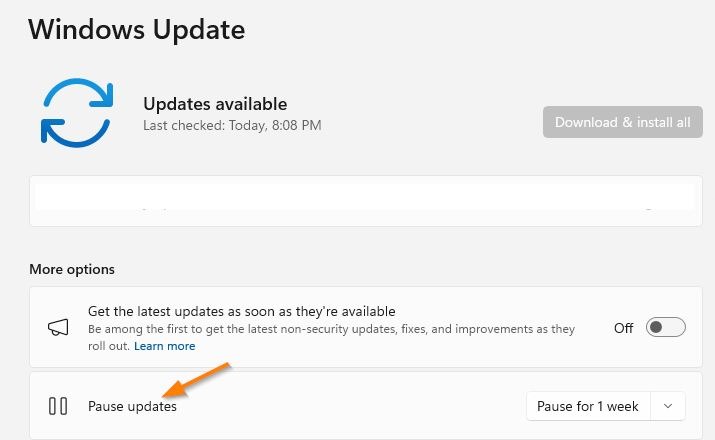
Click: Pause updates
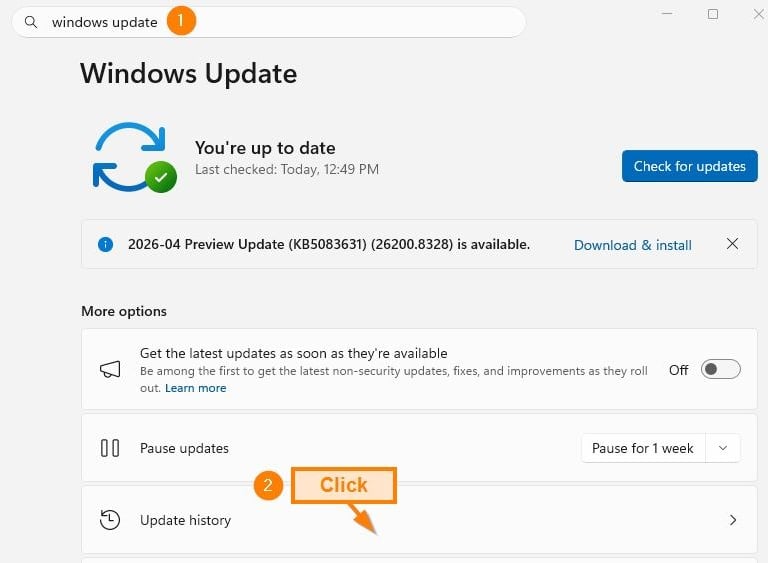
Click: Update history
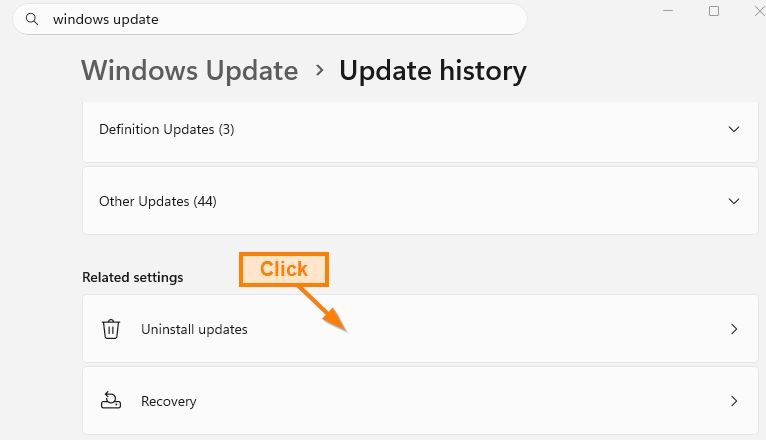
Click: Uninstall updates
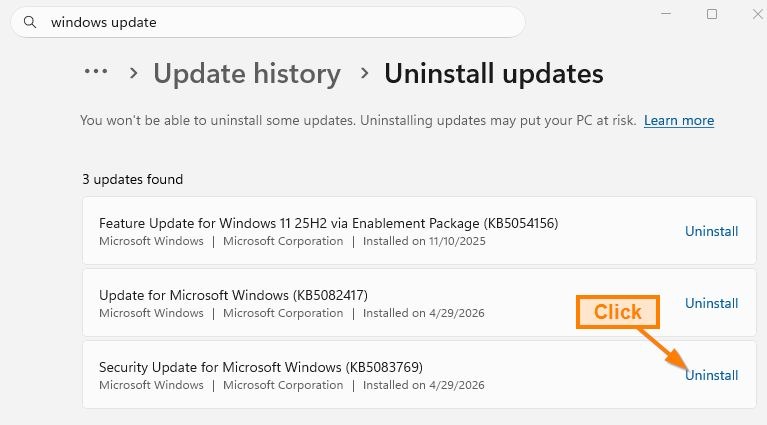
Across from KB5063769, click: Uninstall
Wait for the Uninstall process to complete and then restart the computer.
Questions? Let us know: info@securemyfirm.com